How Do I Minimize a Game on PC Without Closing It
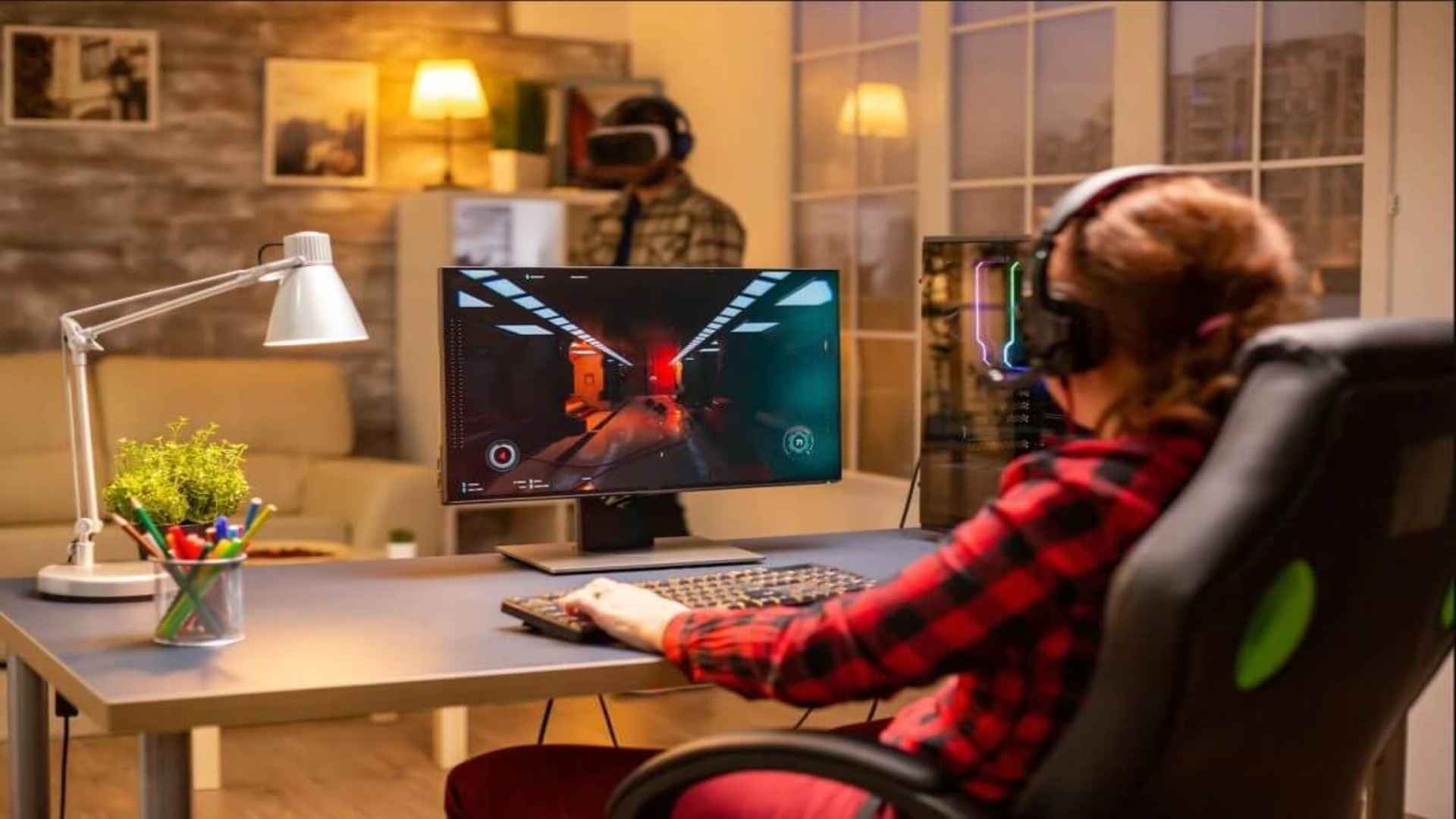
PC gaming offers incredibly immersive experiences, but sometimes real-life responsibilities require your immediate attention during a session. Whether you need to check an urgent message or quickly reference a walkthrough online, knowing how to hide your active screen is essential. Fortunately, Windows provides several built-in shortcuts designed to return you to your desktop without interrupting your gameplay progress.
Essential Keyboard Shortcuts for Instant Access
The quickest way to step away from your running application is by using standard system command keys. Pressing the Windows key combined with the D letter instantly clears your display and shows the desktop area. This action pushes all active software downward, keeping your game session perfectly intact until you return.
Another incredibly reliable alternative sequence is utilizing the classic Alt and Tab key combination. Holding Alt while pressing Tab opens an overlay displaying every open application running on your computer. This allows you to shift your focus to a web browser or communication app seamlessly without terminating your active match.
For situations where you only want to affect the primary screen you are focusing on, the Windows key plus the Down Arrow acts as a multi-stage command. The first tap changes the application from exclusive fullscreen to a scaled window format. Hitting the sequence a second time drops the window completely out of sight into the bottom taskbar.
Adjusting In Game Display Modes for Smoother Transitions
Many modern titles lock the mouse cursor and system interface tightly to prevent accidental inputs during heavy action. If classic shortcuts feel slow or occasionally cause temporary display freezing, altering your internal video preferences can resolve the issue. Switching your video settings from Exclusive Fullscreen to Borderless Windowed mode makes a massive difference in stability.
Borderless environments render the software at full monitor size while treating the application like a standard background window. This means commands register instantly without forcing the graphics processor to shift resolutions or refresh rates. It creates an incredibly seamless transition when jumping back and forth between work tasks and your virtual world.
Alternatively, standard Windowed mode introduces visible borders but grants full control over window placement. You can easily click the standard dash icon located in the top right corner to clear your view instantly. This approach is highly favored by players who actively monitor multiple chat applications or stream layouts on a single monitor.
Using Virtual Desktops to Organize Your Screen Tasks
If you prefer keeping your entertainment completely separate from your productivity layout, Windows Virtual Desktops offer an elegant solution. Pressing the Windows key alongside Ctrl and D creates a completely fresh desktop layer out of sight. You can run your operational applications on one layer while keeping your entertainment active on another.
Switching between these custom workspaces requires a simple tap of the Windows key, Ctrl, and either the Left or Right Arrow keys. This technique eliminates taskbar clutter and ensures a clean screen whenever someone walks into your room. It serves as an excellent system management habit for users juggling multiple demanding applications simultaneously.